Credential Management API is not available on your browser. Try Google Chrome 49 or later and enable the flag at chrome://flags/#enable-credential-manager-api .


What does this website demostrate?
This is a demo website of The Credential Management API.
TL;DR Use Credential Management API to get users sign-in without hassle
What is the Credential Management API?
To provide a sophisticated user experience, it's important to help users authenticate themselves to your website. Authenticated users can interact using a dedicated profile, sync data across devices, process data while offline, the list goes on and on. But creating, remembering and typing passwords tend to be cumbersome for end users which leads them to re-using same passwords on different sites. This of course entails a security risk.
A new Credential Management API has landed behind a flag in Chrome 50. It's a standards-track proposal at the W3C that can store and retrieve user's credential information using JavaScript. You can incorporate the API's functionalities onto your existing website relatively easy, without making changes to your backend.
There are 3 benefits for developers to implement the feature.
- Enable users to sign in without typing passwords.
- Resume session automatically when user is signed out because of session expiration.
- Help users remember the federated account of their choice and enable auto sign-in.
- Avoid saving invalid credentials upon failed authentication or password update
Here's how you can experience the benefits of using Credential Management API on this website.
Prerequisite
You can try out the Credential Management API on Chrome version
later than 50 with
chrome://flags/#enable-credential-manager-api flag
turned on. Signed-in to Chrome profile is preferred.
How to experience
Step 1. Sign up
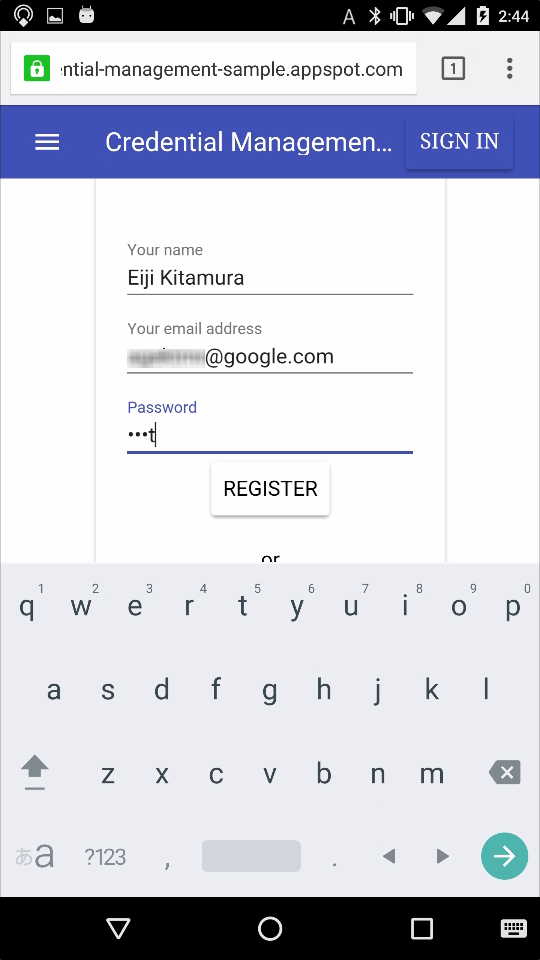
Open the page, enter name, email address and password and sign up (Beware, even though password is stored encrypted, please don't enter real ones).
Step 2. Save password
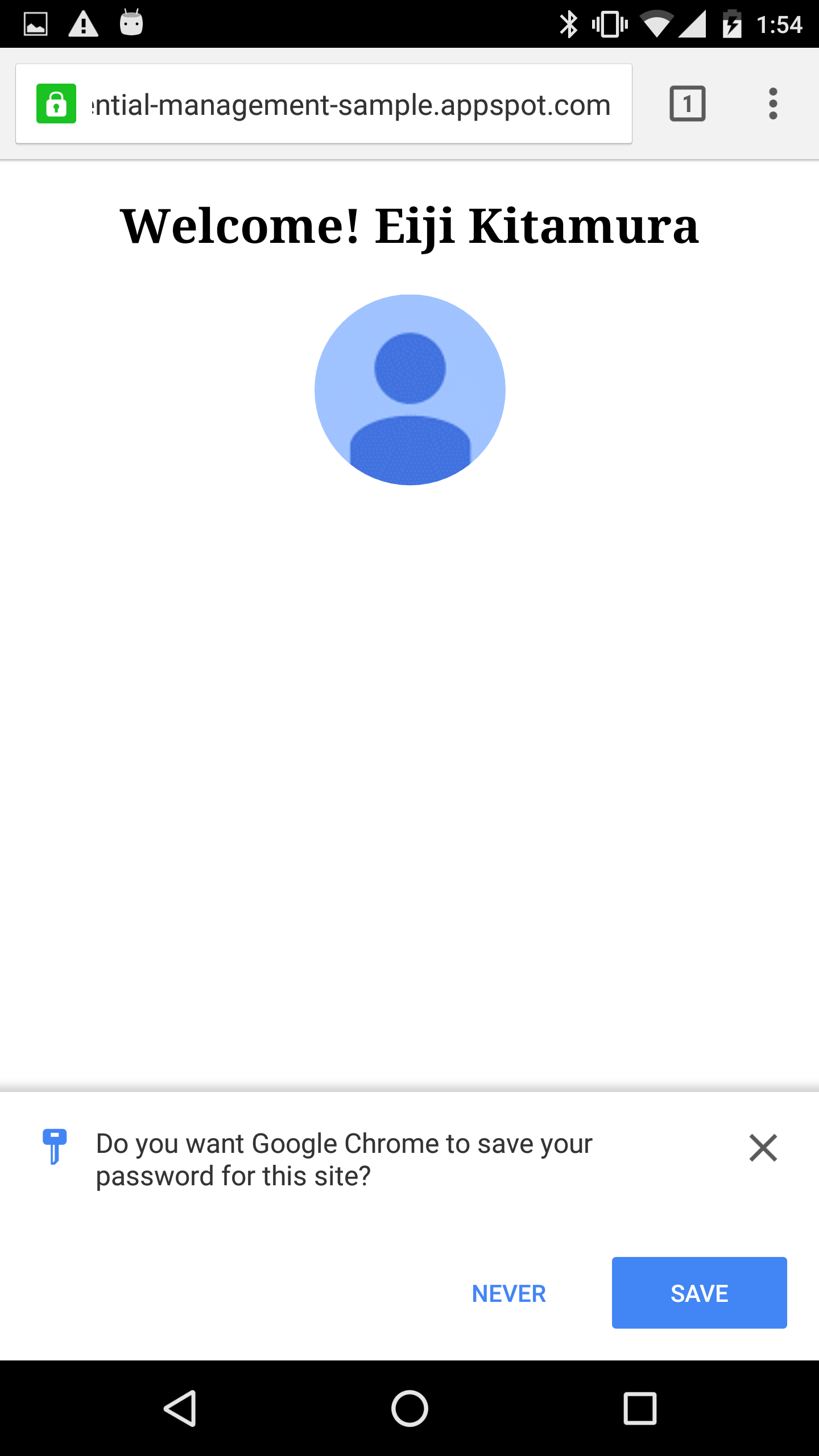
You will then be signed-in and browser asks you to store
credential information to the password manager. Tap "Save" to
store the credential.
You can find the saved credential
information at chrome://settings/passwords.
Step 3. The first sign-in
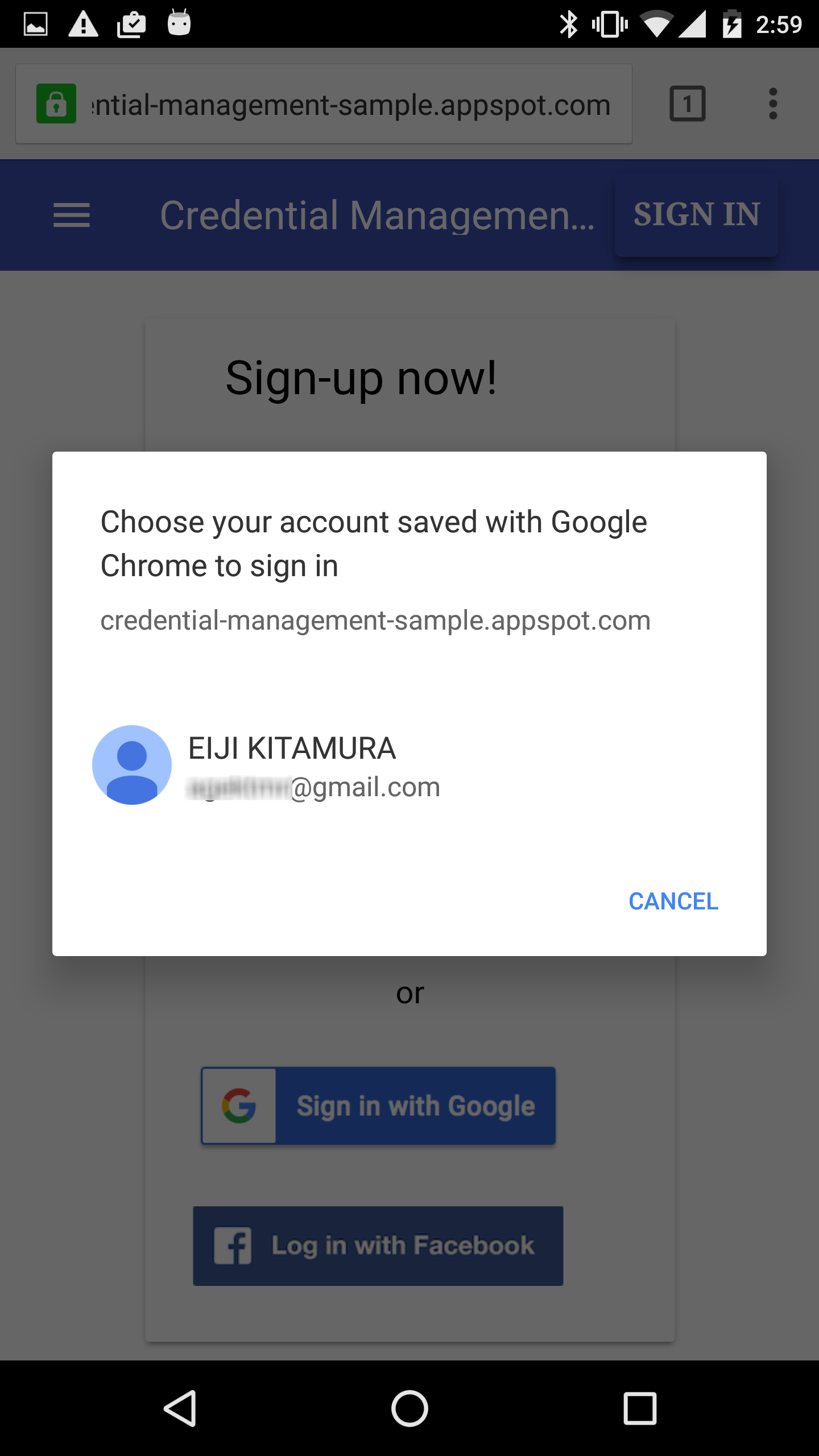
Reload the page. You should be signed-out because this demo
site doesn't keep sessions. Not auto-signed-in? Don't worry, this
is expected. Tap "Sign-In".
You should see an account
chooser dialog. Press the account you have just signed-up with.
Step 4. Opt-in to Smart Lock
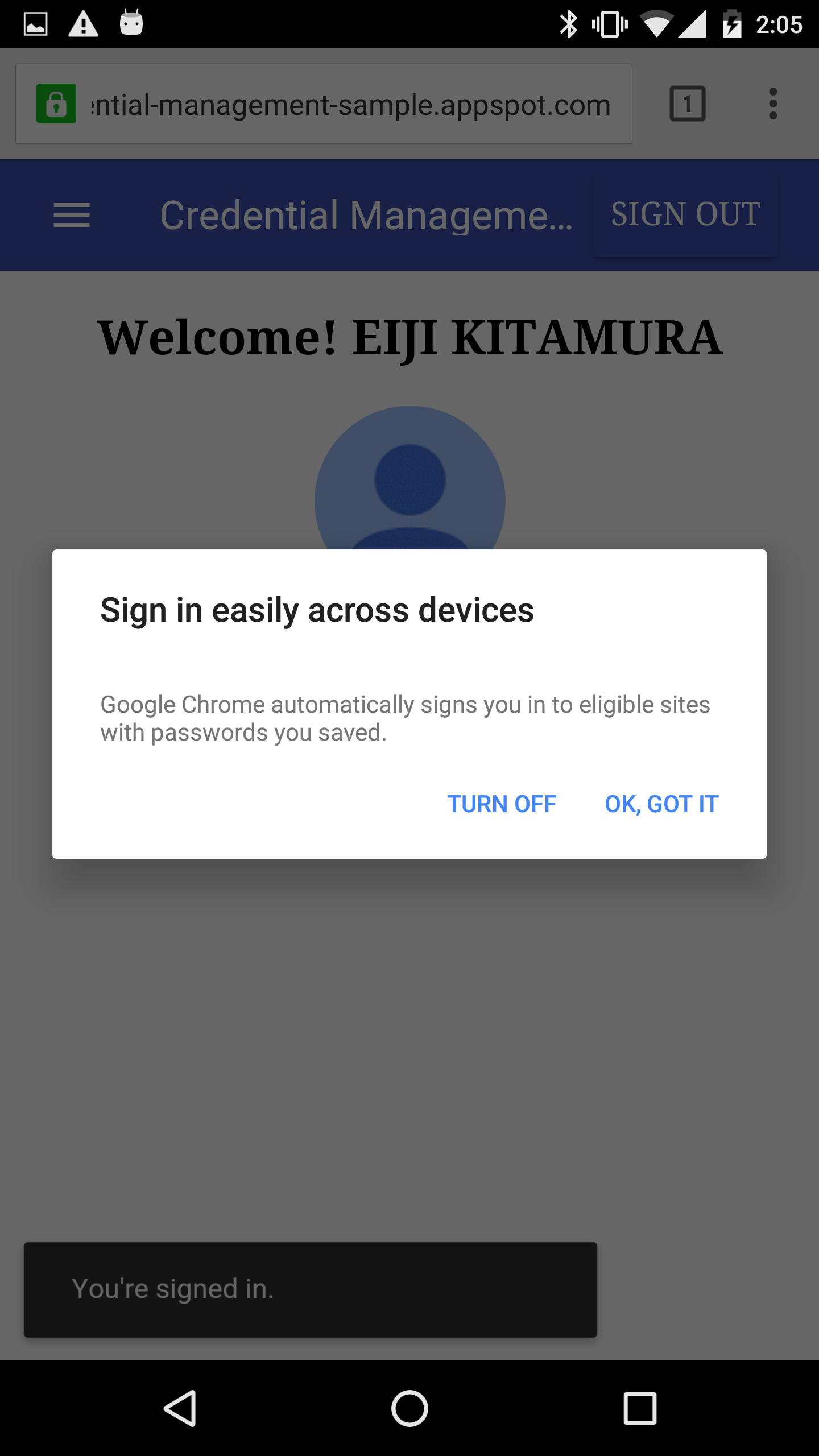
You should now see a dialog asking if you want to opt-in to
Google Smart Lock. This will enable the feature to be turned on
for other sites as well. You can turn this off manually by going
to chrome://settings/passwords.
Step 5. Auto sign-in
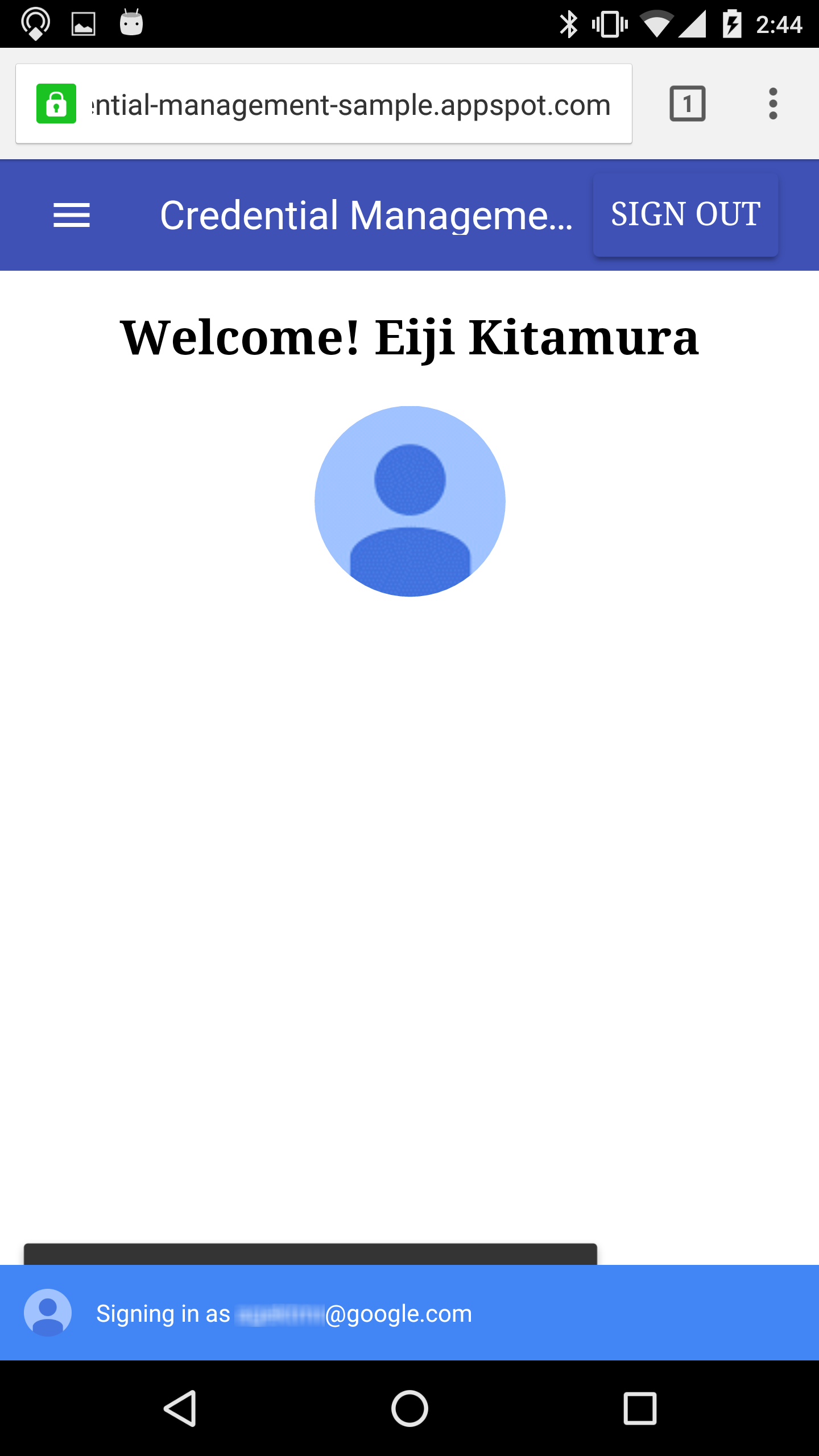
Now, try reload the page again. You should now see at the bottom of the page that you are automatically signed-in using the account you have just signed-up with, as you have turned on the feature.
Step 6. Sign out to enable the "mediation mode"
By signing out from the site by clicking on "Sign Out" brings
you back to a signed out state. Try reload the page. You will
notice that you won't be automatically signed-in. This is called
the "mediation mode". The mediation mode prevents you from
automatically sign-in. It's usually turned on when a user signs
out on purpose.
By user proactively signing-in, the
"mediation mode" will be turned off. Tap "Sign-In" again.
Step 7. Add second account
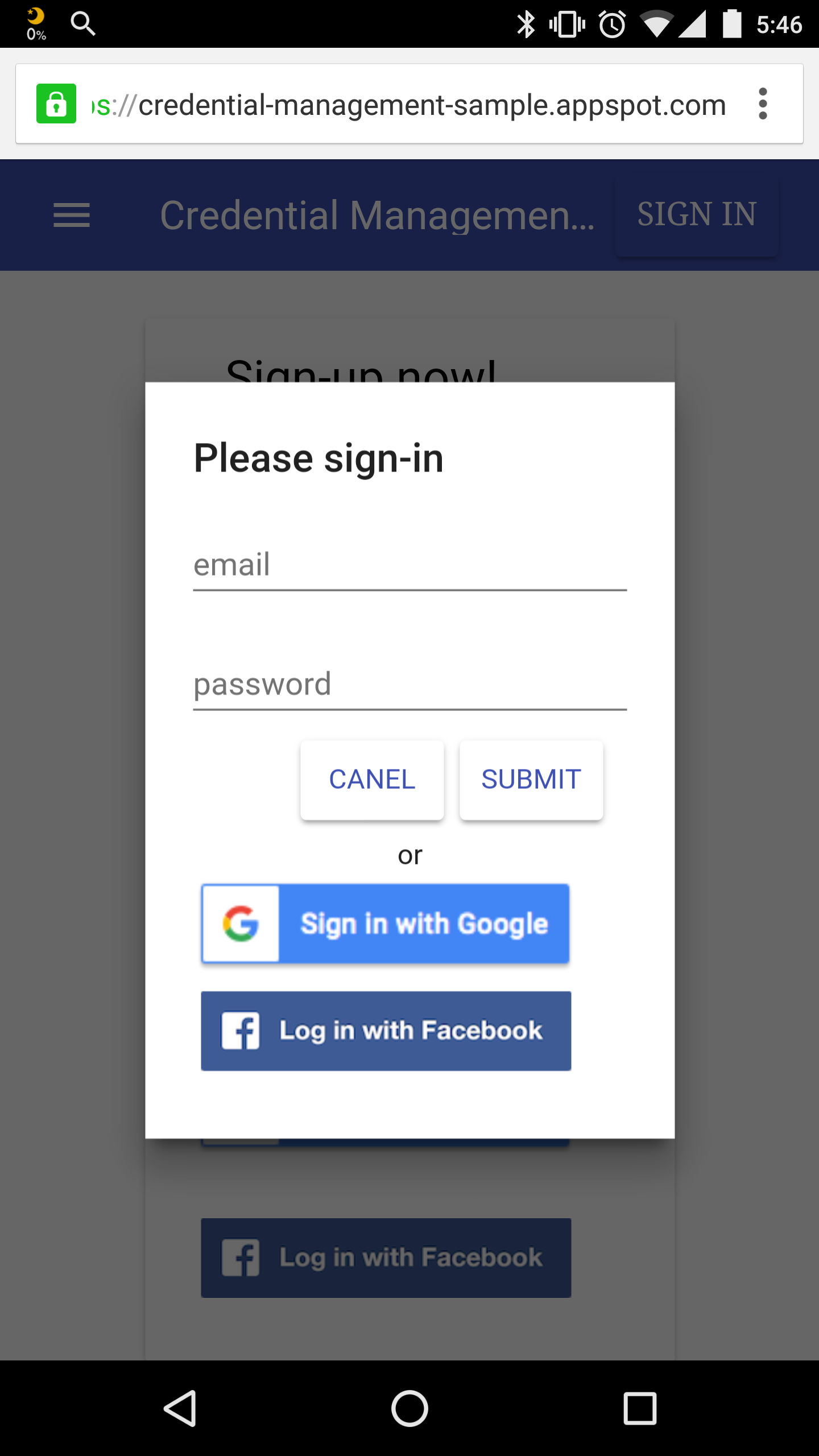
At this time, instead of choosing an account, tap "Cancel".
This will show you a login modal dialog. Choose "Sign-In with
Google" (registration and login using Google Sign-In don't make
any difference on this demo site).
A popup window should
show up so you can sign-in by allowing profile access.
Step 8. Auto-sign-in with 2 accounts?
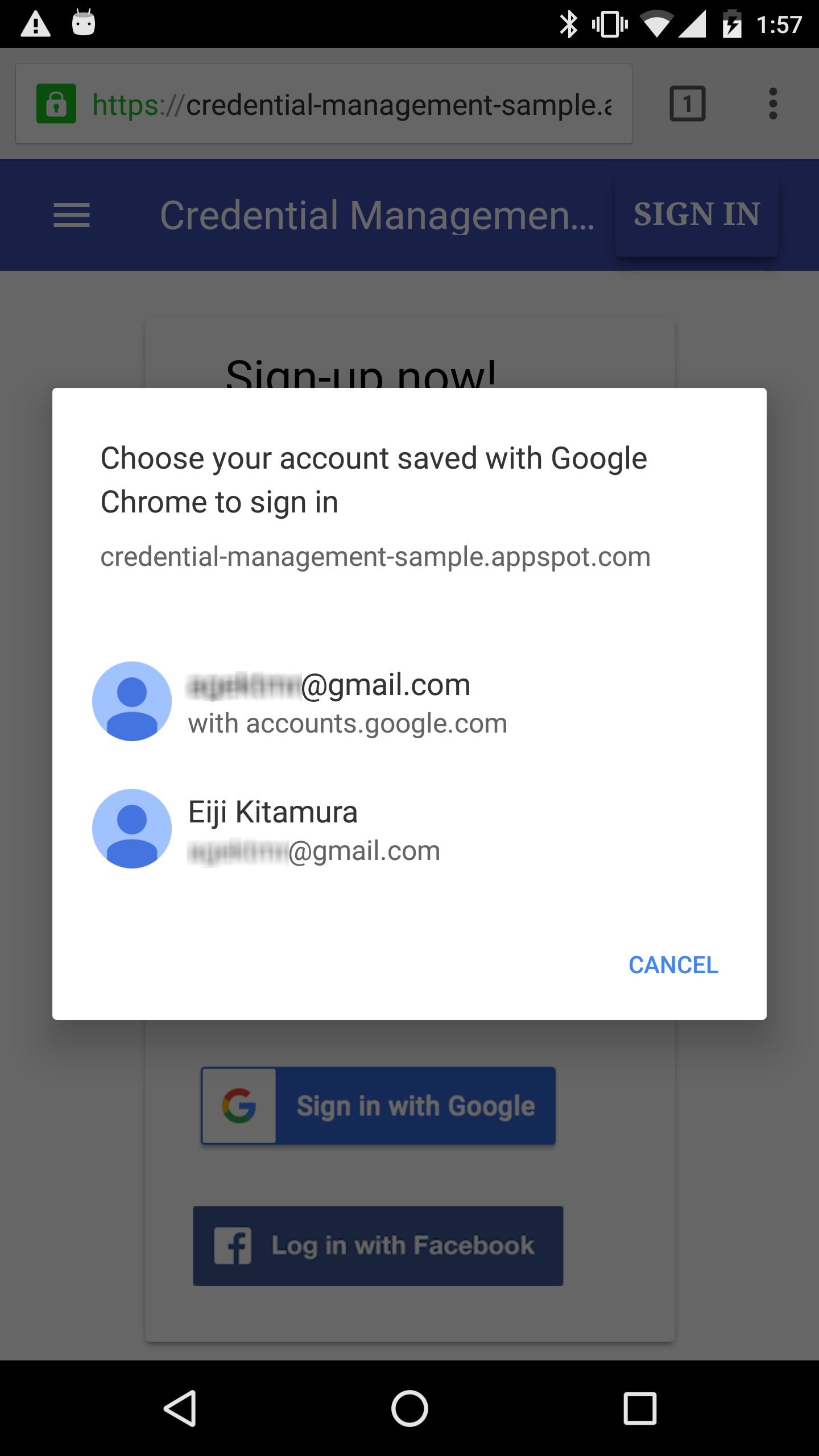
Now you should be able to add the second account to
the site. Let's reload the page without signing-out and see what
happens?
OK, you are not automatically signed-in. This is
because you have more than 1 account saved to the website. In this
case, users have to explicitly tap on "Sign-In" and choose an
account to sign-in with.
Step 9. Try on different device
Now switch your device if you are signed-in to Chrome using a Google account. It could be another PC, Chromebook or another Android device - anywhere Google Chrome can run with the same profile.